Free Windows app
iPhone Photo Importer
Copy photos and videos from your iPhone to a Windows PC. See them, pick what you want, done.
Free · ~100 KB · No installer · Windows 10 and 11 · Open source (MIT)
Role
Design and development
Released
November 2026
License
Free and open source (MIT)
The problem
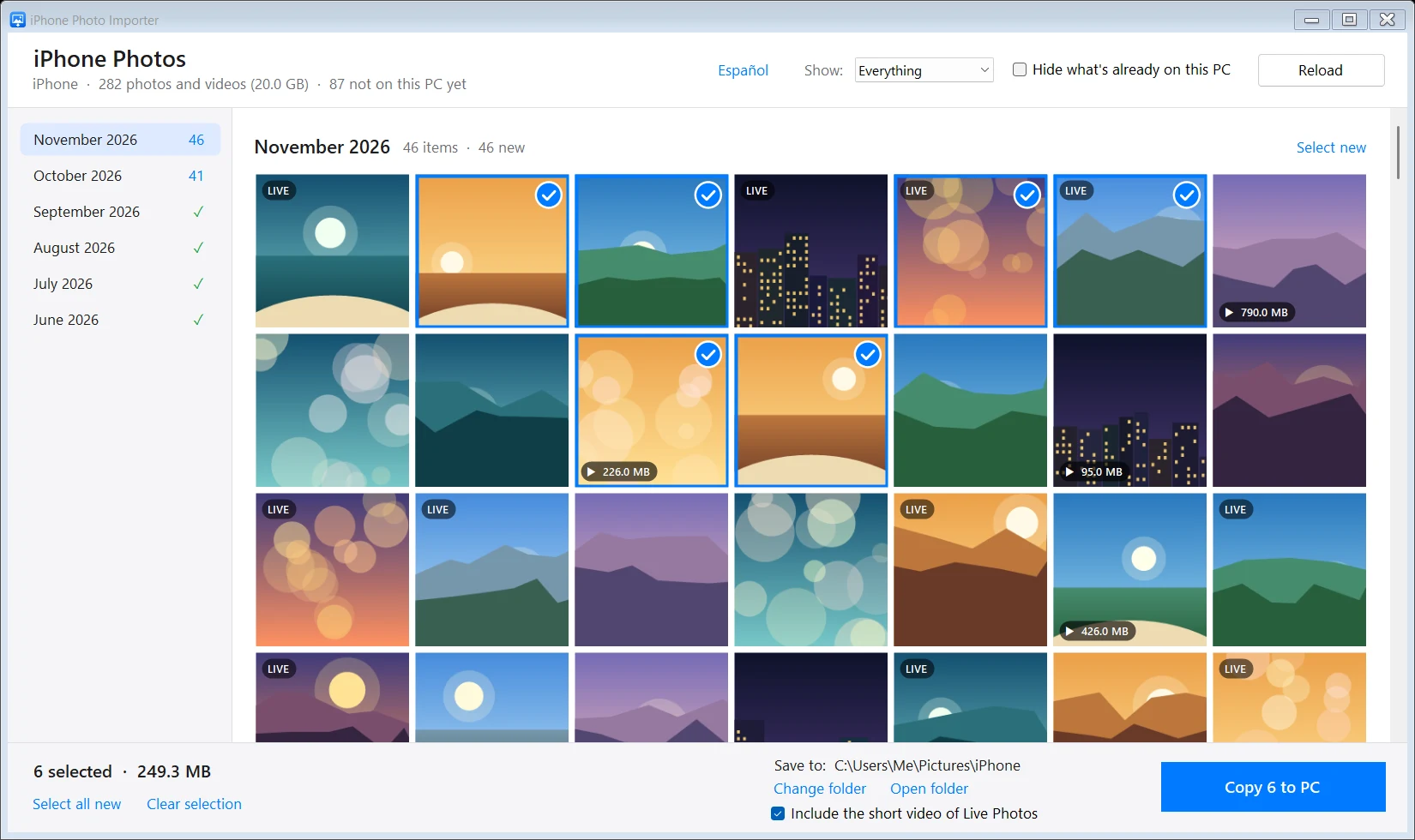
Getting photos off an iPhone on Windows is a pain: File Explorer doesn’t show every folder, and the Photos app takes forever to load. I built a small app that shows everything on the iPhone as thumbnails, grouped by month, and copies only what you choose.
What it does
See everything
Every photo and video as a thumbnail, grouped by month with the newest first, and a month list to jump around.
Pick what you want
Click, Shift+click for a range, or select every new item in a month. Double-click to see a photo full size first.
Only copies what’s new
It remembers what you already imported and marks it “On PC”, so you never copy the same photo twice.
Organized by month
Files land in Pictures\iPhone\2026-11 and keep the date each photo was taken.
Safe by design
Every file is checked to arrive complete. Nothing on the iPhone is deleted or changed, and nothing leaves your PC.
Survives a locked phone
If the iPhone locks mid-copy, the copy pauses and continues when you unlock it.
Live Photos done right
Each Live Photo shows once, and its short video can be copied alongside it.
Tiny and private
One file of about 100 KB, in English and Spanish. No installer, no internet and no Apple account.
How to use it
Download for Windows- 1Connect your iPhone with a USB cable and unlock it. Tap Trust if it asks.
- 2Open the app. Months start appearing right away; the first read can take a few minutes on large libraries.
- 3Click the photos and videos you want, then Copy to PC.
Windows SmartScreen may show a warning the first time, because the app isn’t code-signed. Click More info, then Run anyway. The full source code is public, so anyone can check it or build it themselves.
For big copies, set Auto-Lock to Never on the iPhone (Settings → Display & Brightness).
If something doesn’t work
- The iPhone doesn’t show up
- Unlock it and tap Trust. If it doesn’t appear under This PC in File Explorer either, install Apple Devices (or iTunes) from the Microsoft Store to get Apple’s USB driver.
- The newest photos are missing
- The iPhone sometimes keeps an outdated list of what it shares over USB, and the app warns you when that happens. Restart the iPhone, reconnect it and click Reload.
- Photos stored only in iCloud
- With “Optimize iPhone Storage”, the originals live in iCloud, not on the phone, so they can’t be copied over USB. Download them from icloud.com/photos.
- HEIC photos won’t open
- Install the free HEIF Image Extensions from the Microsoft Store, or set the iPhone to Settings → Photos → Transfer to Mac or PC → Automatic to get JPGs.
Under the hood
- C# with Windows Forms on .NET Framework 4.8, which already ships with Windows 10 and 11.
- Talks to the iPhone through the Windows Shell (IShellItem, IShellItemImageFactory, IFileOperation) over Windows Portable Devices, the same path File Explorer uses, but reading only what it needs.
- Builds with build.bat and the C# compiler included in Windows. No Visual Studio required.
- Every release is built by GitHub Actions from the public source.
Not affiliated with Apple. iPhone is a trademark of Apple Inc.